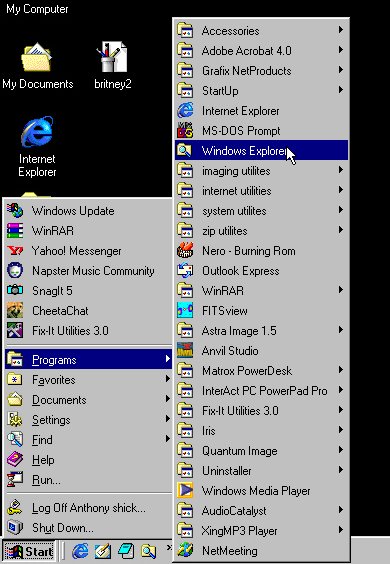
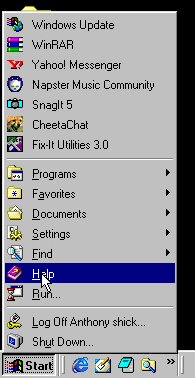
The startmenu is,I think for most users,the hub of windows.This is where you start most all
programs within windows.The startmenu consist of shutdown,logoff,run,help,find,setting,documents,
favorites and programs.Windows update along with alot of your utilities,like the pagers and such,
are placed in the first part of the startmenu.You can add shortcut links to any part of the startmenu,
to what ever program you wish,including files and html.But there are better ways to make shortcuts to files,
at least I have found.If I am working with documents or images,I tend to make folders and name them as the
project I am working on,then save the files that I make to it.so that at anytime,I can just right click the
folder and drag it to the side of the desktop,by doing this it creates a new taskbar,with the files you have saved to it!
The shut down in the startmenu,really needs no explaination.But regardless I have some for you here.
You will notice that there is standby,which places your computer into a state of readyness,most techs tell you
that the standby utility is not real good,I myself agree with them,it takes a bit to wake the computer up,and I have
found alot of them tend to lock up during this period.For most computers it is just as simple to leave it on,or just turn
it off completely,as they are making faster computers that only take moments to start up.Selecting the restart is mainly
for program installation.But note that windows needs to be restarted,at least once every 4 hours,or so I have found,it
clears the cache files,and windows depends on the cache to run all windows applications.Also you will notice the restart
in msdos mode,for most this will not be used,but there are alot of games that insist you do use this.
Tip;To close a program you can hit the hotkeys alt+f4,this also works to shut down windows too,as you will find
by hitting the hotkeys more then once.!
Logoff is for computers that have been setup for multiple users.
Note; the computer does not shut down and reboot,to logoff and relogon as a new user.
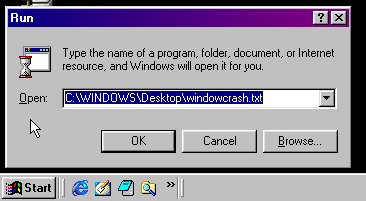
The run utility is a very usefull tool to have.With it you can search and open any exe file on your
computer,and also if the files are associated properly,you can open most all files on your computer too.
This is the windows help file,USE IT,it has a very good search by word,allthough you may not find
all things by word,you sometimes have to search by topic.Most all programs you install has a help file involved with it.
They offer you an insite on the programs use,and compatibility with other programs,and also helps to configure the programs.
Oh so very usefull for those of us who do not pay attention to where files go,or are placed.
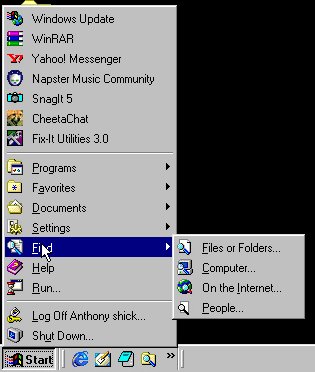
The search on the internet uses the internet explorer search utility,which you can
configure to use alot of online search engines.The people finder is very good and,can be configured
to use any online people search engine also.
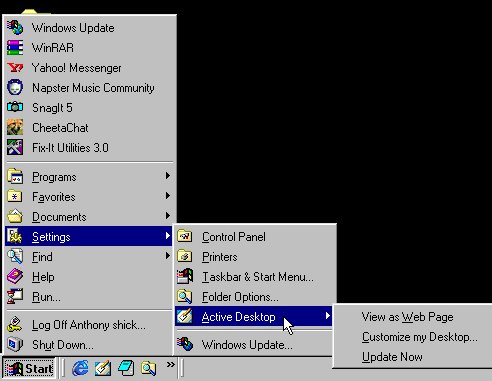
The settings tab consists of the control panel,printers folder,
startmenu taskbar,folder options and active desktop.The active desktop is
how you view your desktop,there are many ways of setting this up,I sugjust you play with it to find something to your liking.
The favorites and documents are just shortcuts to those folders.They are here as quick links,which means you do not need
the mydocments folder on the desktop.The favorites refers to the internet explorer favorites,these are here as quick links,
you can click on one of these and your computer will dail out and open the one you clicked.handy huh?
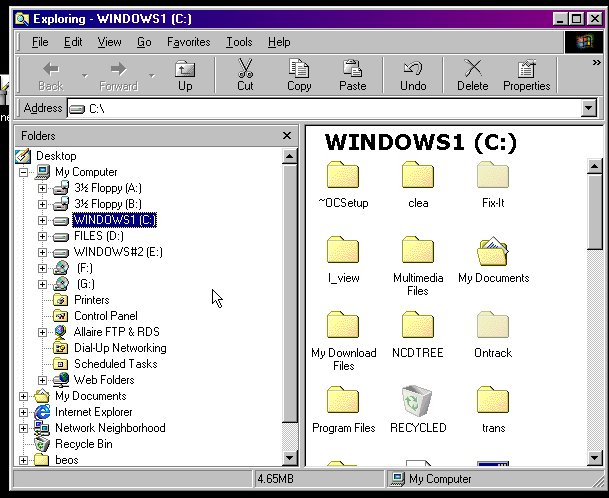
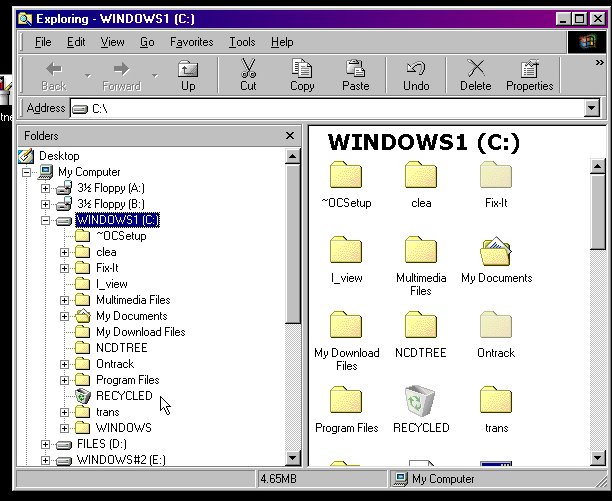
This is the base of the file system,be carefull of what you move and delete,while viewing the files here.
Many systems have been messed up because of accidental moving and deletion of files here.Note though there is an
undo within the windows explorer.
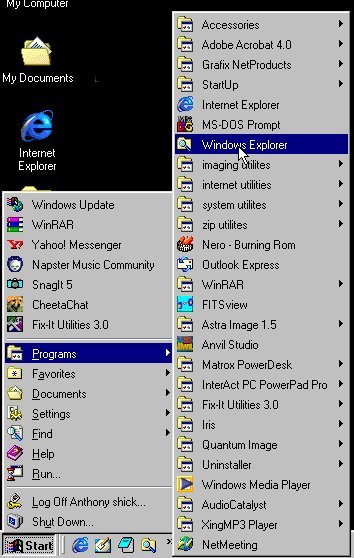
The startup shows you what programs will load when windows loads,you can change what is here at anytime.
You also have here the MS-ODS prompt,internet explorer,outlook express, the accessories and any other program
you install on the computer places short cuts with in here.
Note; you can open the startmenu folder and make specific folders for specific programs as I did here.
Imaging utilities,system utilities,internet utilities and zip utilites.